
 @Dragonwinner
chromex-browser
A complete, hardware-accelerated Web Browser inside VS Code with Widevine DRM video playback, native audio, and zero iframe restrictions.
- Stars
- 0
- Language
- JavaScript
- Created
- Aug 16, 2026
- Updated
- Sep 6, 2026
Introduction
ChromeX Browser



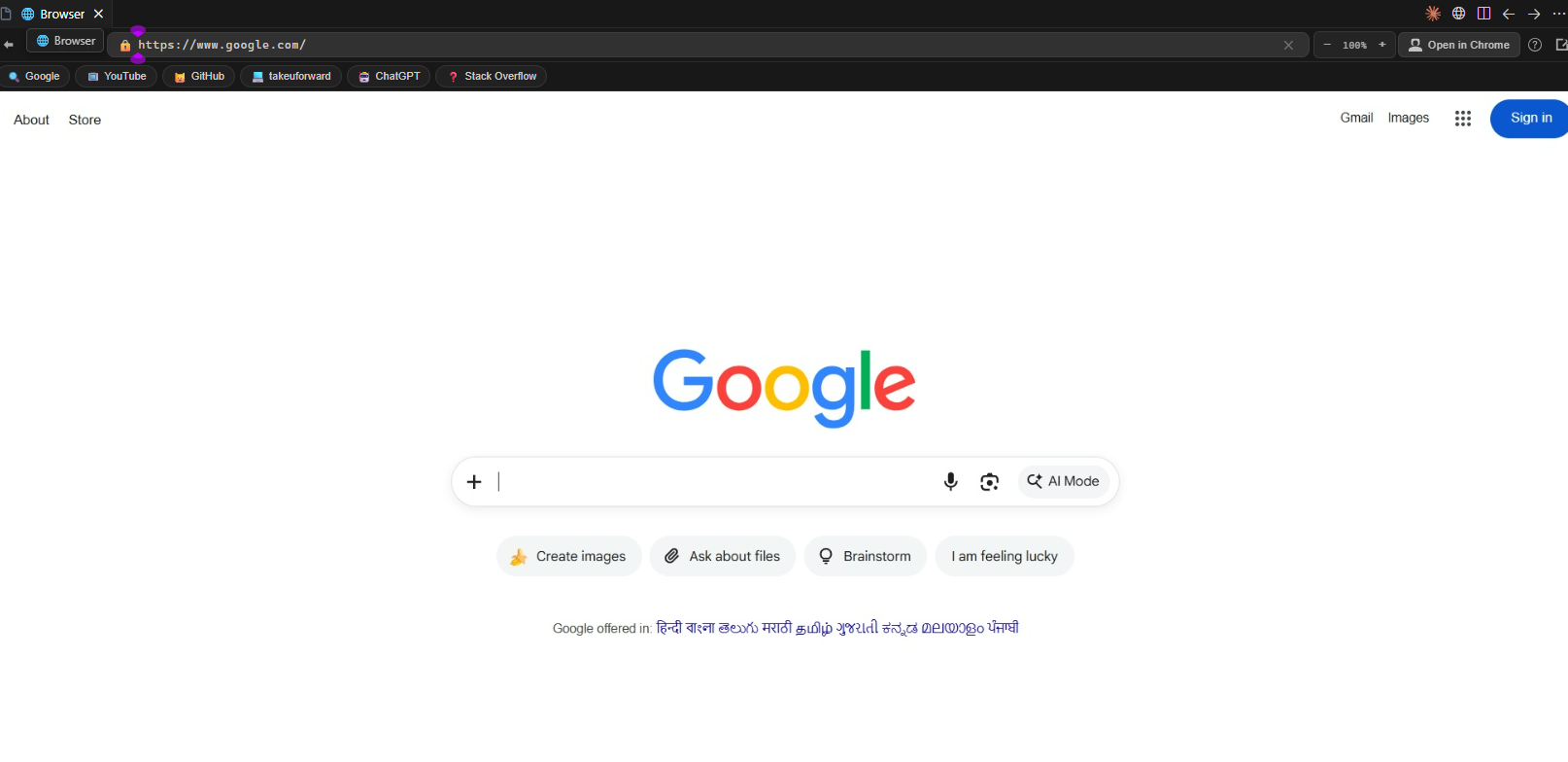
A complete, lightning-fast Web Browser embedded directly inside VS Code, Cursor, and Antigravity IDE.
Explore the internet, follow coding courses, stream video lectures with crystal-clear audio, search docs, and run interactive web apps side-by-side with your code — zero iframe or CSP limitations.
🌟 Why Use ChromeX Browser?
Stop switching back and forth between your IDE and external browser windows!
Traditional VS Code browser extensions use simple <iframe> elements that fail on almost all modern websites due to X-Frame-Options and strict Content Security Policies.
ChromeX Browser launches a high-performance, GPU-accelerated Chromium engine in the background and streams low-latency, 60fps frames directly into your editor using the Chrome DevTools Protocol (CDP). You get a genuine, unrestricted browser tab inside your editor.
📋 Prerequisites & System Requirements
Before using this extension, make sure you have at least one modern Chromium browser installed on your system:
| Browser | Support Status | Auto-Detected Paths |
|---|---|---|
| 🟢 Google Chrome (Recommended) | ✅ Full Support (Audio, DRM, GPU) | Windows, macOS, Linux standard install dirs |
| 🟢 Microsoft Edge | ✅ Full Support (Audio, DRM, GPU) | Windows standard install dirs |
| 🟢 Brave Browser | ✅ Full Support (Audio, GPU) | Windows standard install dirs |
Why is a local browser required?
ChromeX Browser uses your local Chromium installation to deliver 100% native hardware acceleration, Widevine DRM playback for courses, low memory overhead, and direct system audio without relying on slow cloud proxies.
📦 Installation Guide
Method 1: Install from Marketplace (Recommended)
- Open VS Code / Cursor / Antigravity IDE.
- Go to the Extensions view (
Ctrl + Shift + XorCmd + Shift + X). - Search for
ChromeX Browser. - Click Install.
Method 2: Install from .vsix Package
- Download the
chromex-browser-1.0.1.vsixfile. - In VS Code, open the Command Palette (
Ctrl + Shift + PorCmd + Shift + P). - Type
Extensions: Install from VSIX...and select the.vsixfile. - Or run via terminal:
code --install-extension chromex-browser-1.0.1.vsix
🔧 Custom Browser Path (If not auto-detected)
If your Chrome or Brave is installed in a custom location, specify the path in your VS Code settings:
- Open Settings (
Ctrl + ,orCmd + ,). - Search for
fullBrowser.chromePath. - Enter your executable path (e.g.
D:\Browsers\Chrome\chrome.exe).
📸 Explore the Internet & Capabilities Showcase
1. 🎓 Learn & Code Simultaneously (DSA, Courses & Interactive Portals)
Watch coding video courses and follow problem-solving guides directly beside your code. Built-in Widevine CDM and GPU acceleration allow you to play protected lectures on platforms like TakeUForward, Coursera, Udemy, and LeetCode.
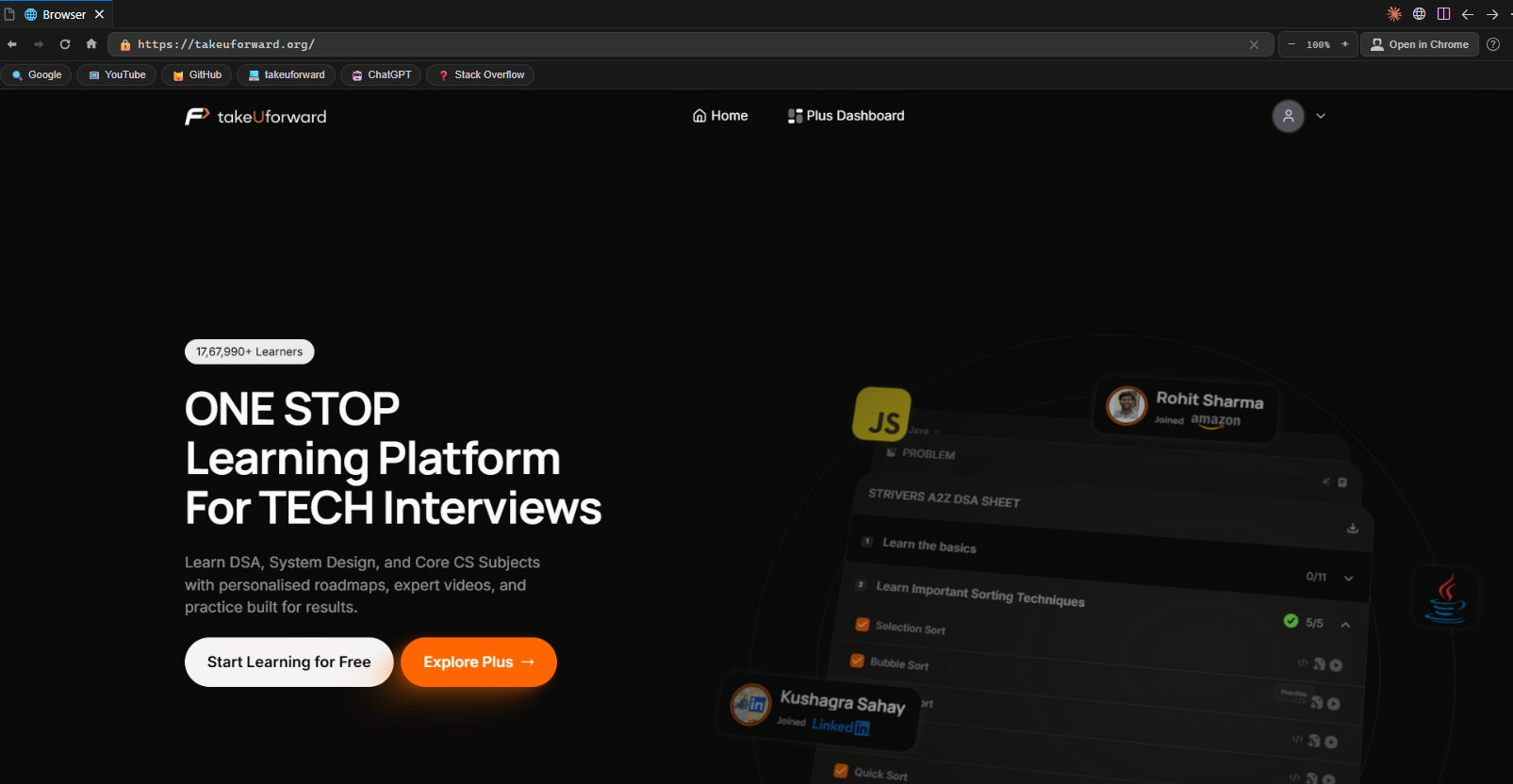
Solve coding challenges, read editorials, and watch lecture videos without ever leaving your editor.
2. 📺 Stream YouTube Tutorials, Tech Talks & Music
Stream developer tutorials, conference talks, or background music with native system audio, timeline scrubbing, seeking, and responsive fullscreen mode.
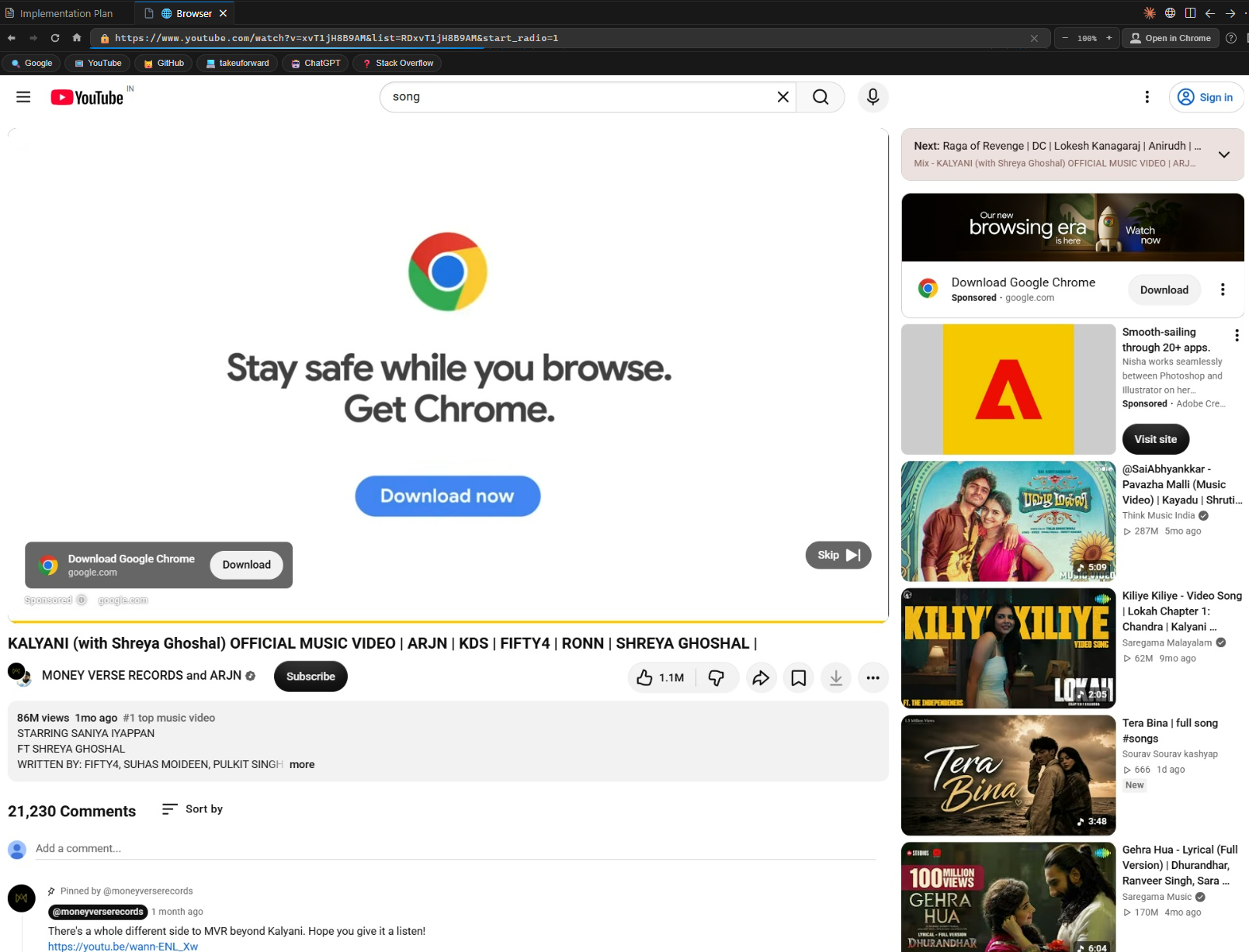
Watch video walkthroughs with synced audio, keyboard playback controls, and fullscreen view.
3. 🌐 Google Search, Official Docs & Web Apps
Search Google, browse MDN, read API documentation, look up Stack Overflow answers, or access web dashboards with instant keyboard typing and mouse interaction.
Search the internet and access web tools with full typing precision and automatic theme matching.
✨ Features at a Glance
| Feature | Description |
|---|---|
| 🌐 Unrestricted Browsing | Open any site (Google, YouTube, GitHub, ChatGPT, LeetCode, etc.) without iframe blocking |
| 🛡️ DRM & Video Playback | Widevine CDM auto-detection for protected educational videos & media |
| 🔊 Native System Audio | Full unmuted audio playback through your system speakers/headphones |
| ⚡ Hardware Accelerated | DirectX 11 ANGLE rendering, GPU rasterization, zero-copy video decode |
| ⌨️ Precise Keyboard Input | Single-keystroke accuracy, modifier keys (Ctrl, Alt, Shift), form navigation |
| 🖱️ Full Mouse Interaction | Exact coordinate mapping, drag-and-drop, text selection, wheel scrolling |
| 📐 Dynamic Viewport Sync | Automatically syncs Chrome viewport and window size on panel resize and fullscreen |
| 🍪 Chrome Session Sync | Import active login sessions and cookies from your local Chrome profile |
| 📑 Quick Bookmarks Bar | 1-click access to essentials (Google, YouTube, GitHub, TakeUForward, ChatGPT, Stack Overflow) |
| 🔍 Zoom & Scaling | In-browser zoom controls (Ctrl + Plus, Ctrl + Minus, Ctrl + 0) with live percentage display |
| 🎨 IDE Theme Integration | Automatically adapts to your editor's dark or light theme |
| 📊 Real-time Diagnostics | Live FPS counter, HTTPS security indicator, and quick help modal (?) |
🚀 How to Use
- Press
Ctrl + Shift + P(orCmd + Shift + Pon macOS) to open the Command Palette. - Type
Open Full Browserand hit Enter (or click the 🌐 icon in the Status Bar / Editor Title). - Type any URL or search term in the address bar and enjoy browsing!
⌨️ Keyboard Shortcuts (Inside Browser Panel)
| Shortcut | Action |
|---|---|
Ctrl + L | Focus URL / Address Bar |
F5 | Reload current page |
Alt + Left | Navigate Back |
Alt + Right | Navigate Forward |
Ctrl + Plus / Ctrl + = | Zoom In (+10%) |
Ctrl + Minus | Zoom Out (-10%) |
Ctrl + 0 | Reset Zoom to 100% |
Escape | Close modals / dialogs |
Enter (in URL bar) | Navigate to URL |
⚙️ Extension Settings
Configure ChromeX Browser (v1.0.7) via Settings (Ctrl+,) → Extensions → ChromeX Browser:
| Setting | Default | Description |
|---|---|---|
fullBrowser.chromePath | "" (auto-detect) | Custom path to chrome.exe, msedge.exe, or brave.exe |
fullBrowser.homepage | https://www.google.com | Default homepage URL on launch |
fullBrowser.quality | 95 | Screencast JPEG quality (10–100) |
fullBrowser.everyNthFrame | 1 | Capture rate (1 = smoothest 60 FPS) |
fullBrowser.profileMode | temporary | Profile isolation mode (temporary, persistent, chrome) |
fullBrowser.profileDirectory | auto | Chrome profile directory name |
🔒 Privacy & Security
- 100% Local: Runs exclusively on your computer using your local browser installation.
- No Cloud Proxies: No data is sent to external servers or third parties.
- Secure Isolation: Your session cookies and credentials remain safe on your local drive.
🤝 Contributing & Developer Setup
We love contributions! Whether it's fixing bugs, improving performance, or adding new features, here's how to get started:
# 1. Clone the repository
git clone https://github.com/Dragonwinner/chromex-browser.git
cd chromex-browser

# 2. Install dependencies
npm install

# 3. Build & bundle
npm run build

# 4. Press F5 in VS Code to launch Extension Development Host
📖 Read our full Contributing Guide (CONTRIBUTING.md) for detailed architecture docs, debugging workflows, and pull request guidelines.
📄 License
This project is licensed under the MIT License.