
 @MIHassan3
DSH-Launcher
this is a launcher for the official DeepSeek Harness. no modifications it just launches what DeepSeek develops.
- Stars
- 3
- Language
- JavaScript
- Created
- Sep 9, 2026
- Updated
- Oct 10, 2026
Introduction
DSH-Dock
⚠️ Development Stopped — 2026-10-10
This project is no longer under active development.
DSH-Dock was a third-party desktop launcher for the DeepSeek Harness, built to solve one problem: running the Harness without touching a terminal.
On 2026-09-30, DeepSeek released an official desktop application for the DeepSeek Harness for Windows and macOS. It does what this project set out to do — one-click launch, background operation, local file access, auto-update — with first-party support.
Use the official app instead:
- Official page: https://www.deepseek.com/en/harness/
- Windows 10+ and macOS (Apple Silicon) installers are available directly from DeepSeek.
The premise of this project no longer exists. It is archived here as a record of the work, not as a maintained tool.
Engineering record:
docs/stoppingNote.md— what was built, what was verified at close, the known defects at halt, and what remained on the plan.
What was built
DSH-Dock reached a functional state across Phases 0–1, Pause 3 (native menu bar), Pause 4 (first-run wizard), and Phase 2A (version library backend — committed as 075a897). Phase 2B (version switching, registry routes, minimal Version Manager UI, menu dispatch) was in progress when development stopped — the code is present in the final commit but was not fully verified.
Known issues at halt
- Menu lifecycle regression: after a version switch, the harness window's menu bar does not reappear. Introduced during Phase 2B Step 7b/8 work and not fixed before the project stopped.
- Running-version checkmark: the Recent Versions submenu checkmark was implemented but not confirmed working in the harness window, likely the same root cause as the menu regression.
- Partial-tree and failed-switch paths: implemented and unit-tested, not exercised in a live build.
Technical summary
Tauri v2 (Rust shell) + Node.js sidecar + Svelte 5 frontend. Version library with staged-rename installs, an advisory catalogue, install-tree validation, and a library lock. Four-layer architecture: thin shell, smart core, opaque harness, local version store.
See docs/PROJECT_DSH-DOCK.md (v2.7.0) for the full framework specification.
DSH-Dock
Your launchpad for the DeepSeek Harness.




DSH-Dock is a desktop launcher for the official DeepSeek Harness (@deepseek-ai/dsh). It runs the harness in the background and shows its UI in a native window — no terminal, no copy-pasting commands, no losing your harness when you close the launcher.
DSH-Dock is a wrapper, not a fork. It manages the harness's lifecycle without ever modifying the harness itself.
What it looks like
The dashboard
Control the harness from a clean native window — start it, stop it, see what version is running, and open its UI when you're ready.
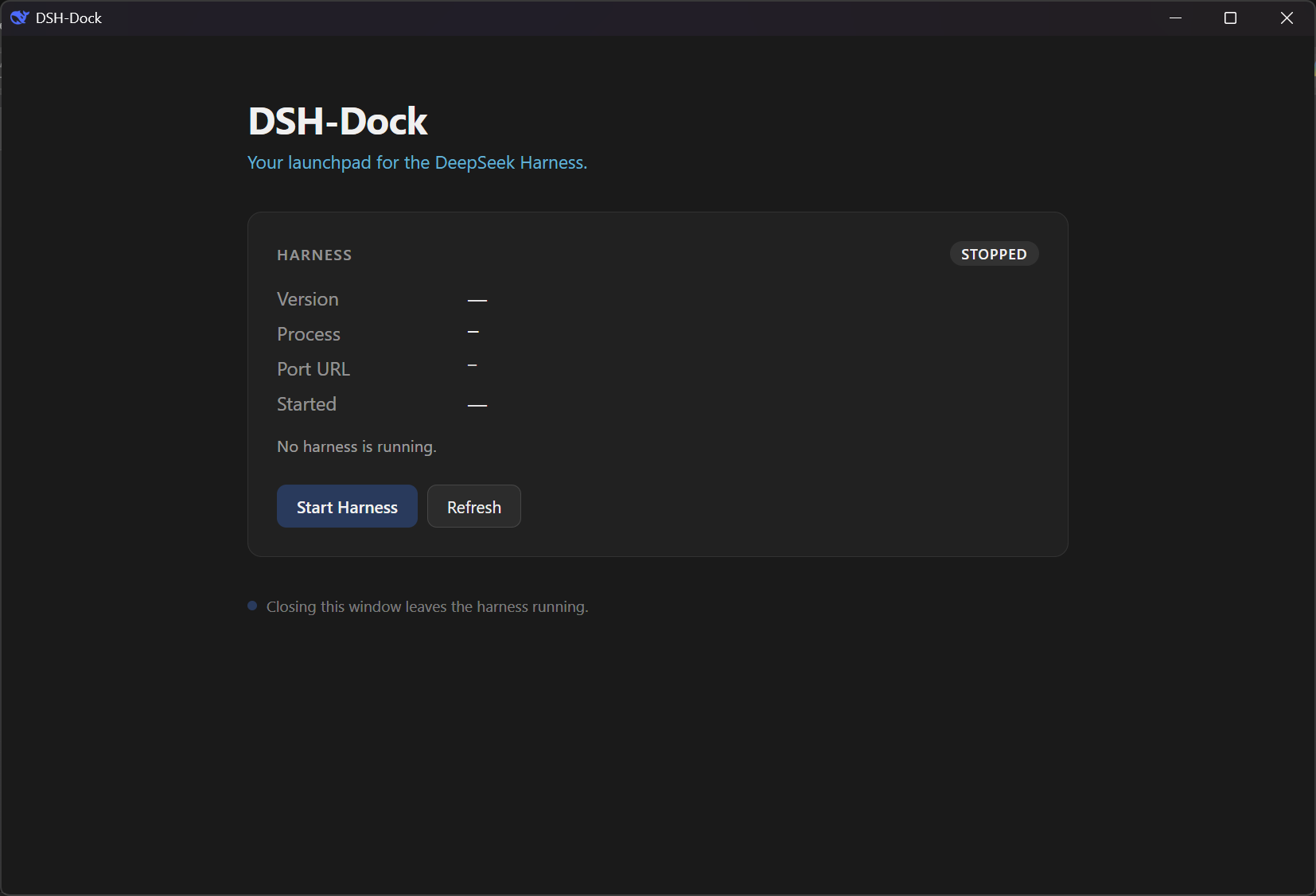
Starting the harness
Click Start Harness and the dashboard shows live progress while the harness boots. First boot installs the harness; subsequent boots are much faster.
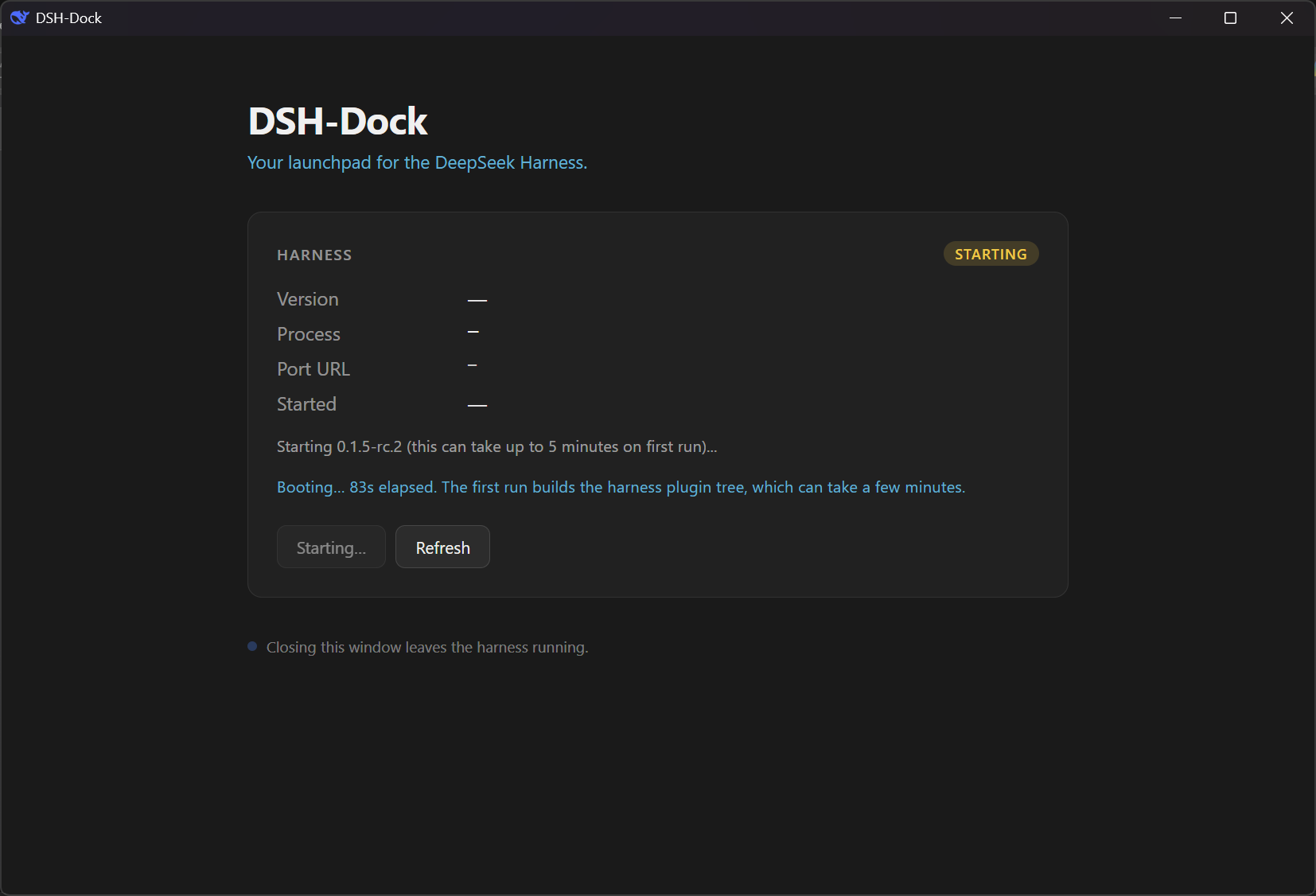
Running
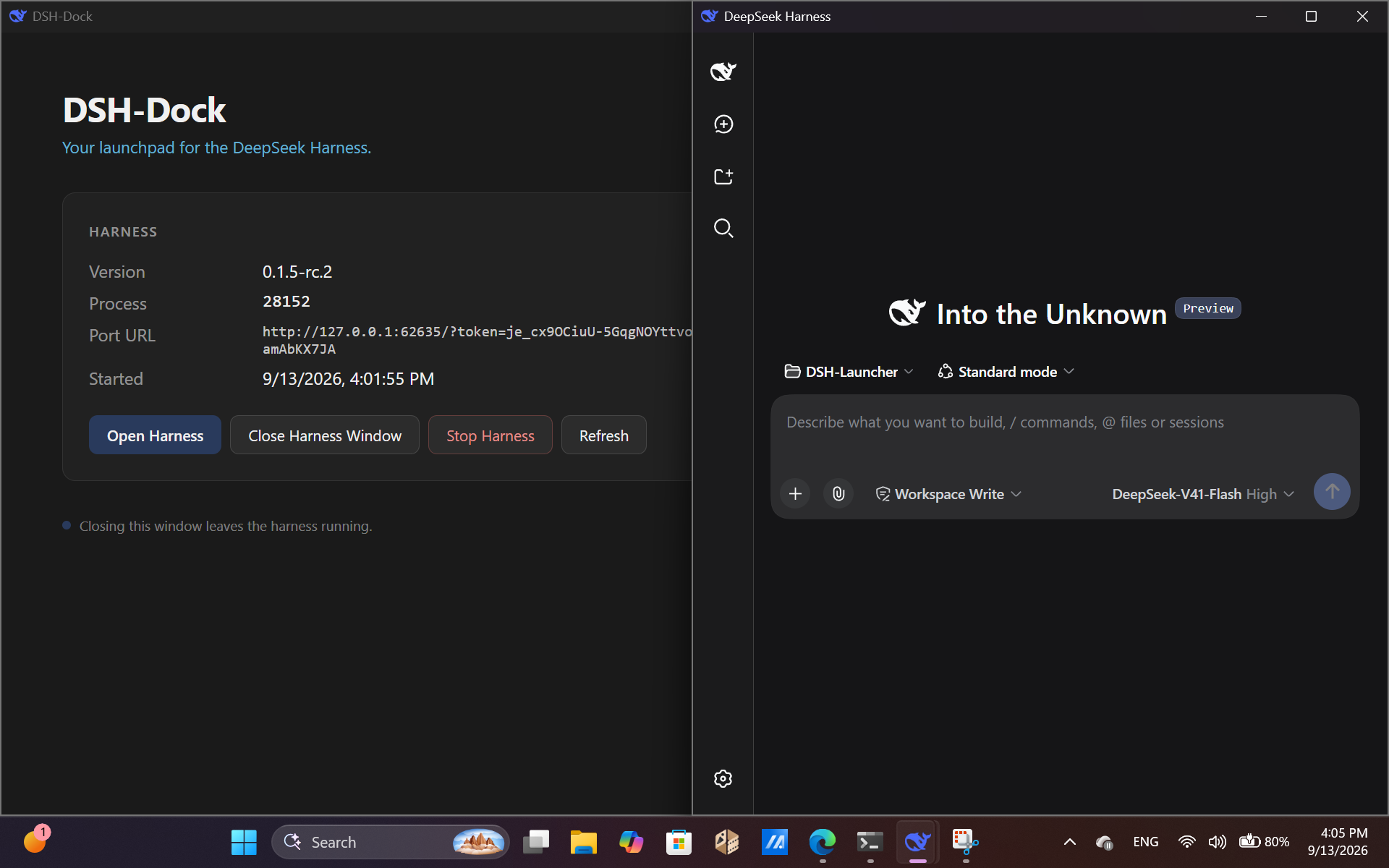
Once the harness is up, the dashboard shows its version, process ID, port URL, and start time. The harness runs in the background — closing the launcher doesn't stop it.
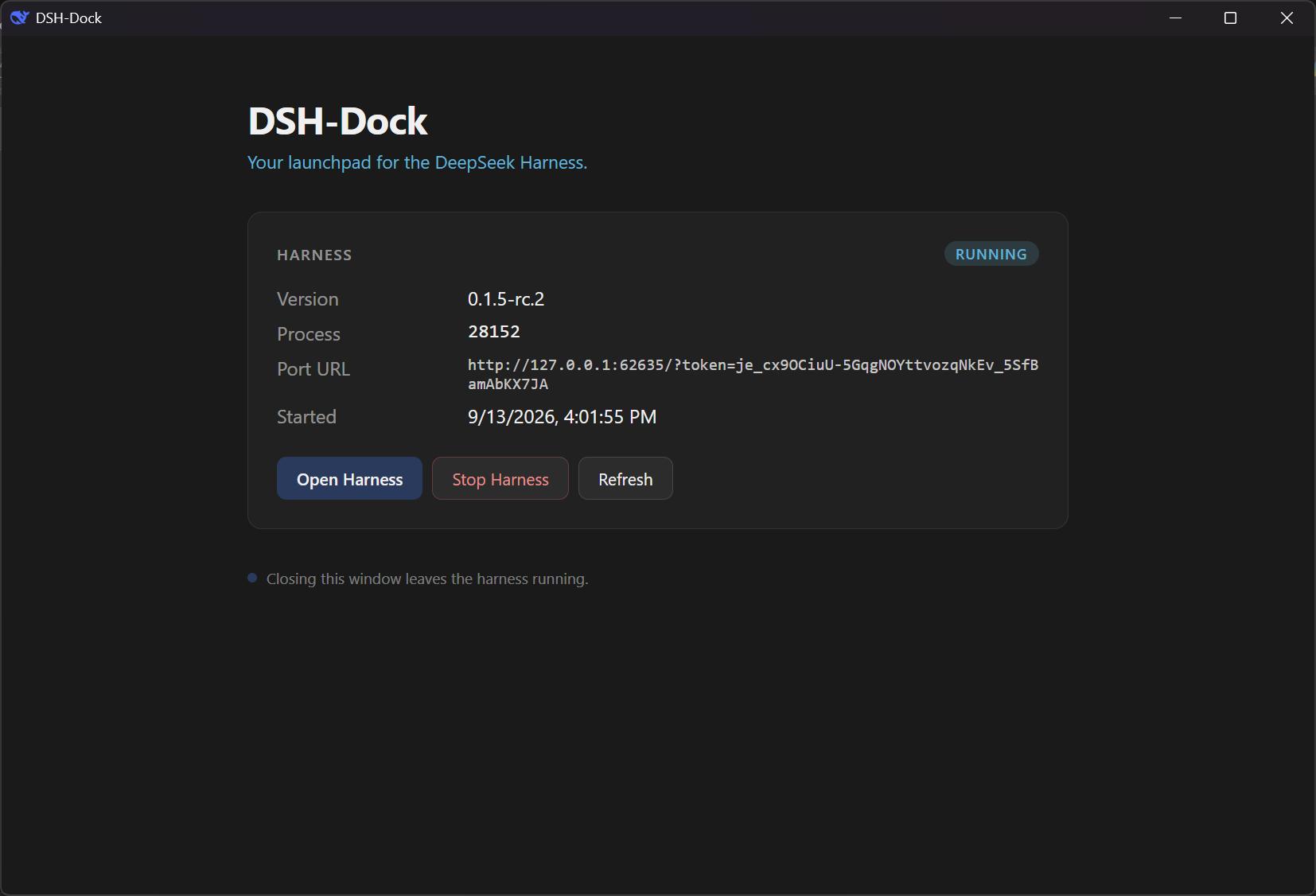
The DeepSeek Harness UI
The harness opens in its own native window, running inside an embedded webview. It's the official UI — unmodified.
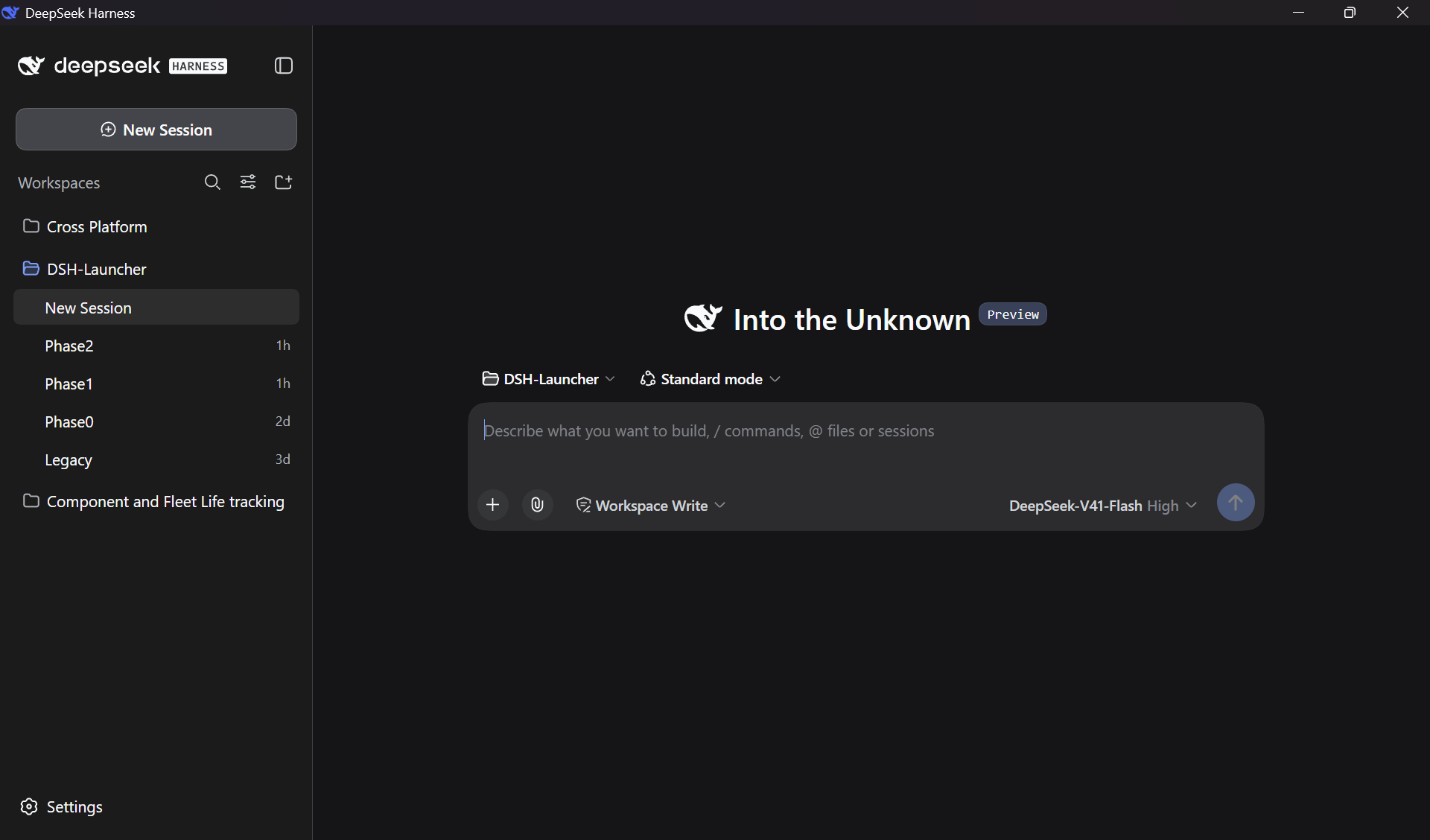
Both windows
The launcher stays as a control panel. The harness gets its own space.
Status: Technical Preview (v0.5.0)
This is a Phase 1 milestone. The launcher works end-to-end for its core use case, but the surrounding features are not yet built.
✅ What works
- One-click launch of the DeepSeek Harness in a native window
- The harness runs detached in the background
- The harness survives the launcher closing — reopening the launcher adopts it instantly
- Installs the latest RC of
@deepseek-ai/dshautomatically on first run - Native dashboard with start / stop / open controls
❌ What is not in this preview
- No version picker — always uses the latest RC channel
- No settings UI
- No system tray icon
- No auto-update for the launcher itself
- Windows only — macOS and Linux come in Phase 4
- Unsigned binaries — expect SmartScreen warnings on first launch
- Node.js v22.19+ must be installed manually (bundled runtime is Phase 4)
The full version-management library, channel picker, and settings surface arrive in later phases. See docs/PROJECT_DSH-DOCK.md for the roadmap.
Installation
Prerequisites
| Requirement | Why | Where to get it |
|---|---|---|
| Windows 10 or 11 (x64) | The launcher is Windows-only for now | — |
| Node.js v22.19+ LTS | The harness itself runs on Node; DSH-Dock invokes it during Phase 1 | nodejs.org |
| WebView2 Runtime | The launcher renders its UI inside WebView2 | Preinstalled on Win 10/11. Get it here if missing |
Steps
-
Download the installer.
Go to the latest release and download
the latest version.Note: The binary is unsigned, so Windows SmartScreen will warn you on first run. Click More info → Run anyway.
-
Run the installer.
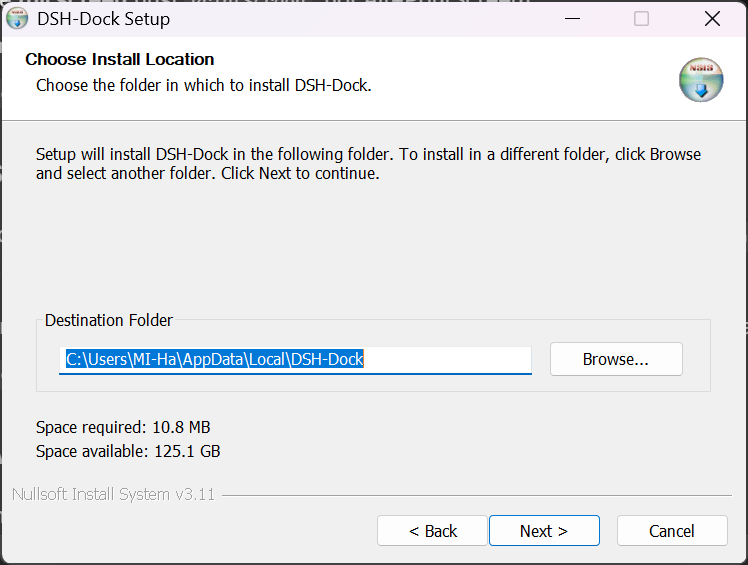
The installer is per-user, so it does not require administrator rights. It installs DSH-Dock into
%LOCALAPPDATA%\Programs\DSH-Dock\and adds a Start-menu shortcut. -
Launch DSH-Dock.
The first launch downloads and installs the latest DeepSeek Harness release (~370 MB). This takes a few minutes depending on your connection.
First run is slow. This is expected. Subsequent launches are instant — the harness is already on disk.
-
Click
Start Harness.The dashboard will show progress as the harness boots. Once the badge reads
RUNNING, click Open Harness to launch the DeepSeek Harness in its own window.
Common questions
Where does my data live?
DSH-Dock keeps its own state in:
%LOCALAPPDATA%\DSH-Dock\
├── runtime-state.json     # which harness is running, on what port
├── versions\              # installed harness versions
├── logs\                  # launcher and harness logs
└── .npm-cache\            # npm download cache
Your DeepSeek Harness data is never touched. Sessions, configuration, credentials, and plugins live in %USERPROFILE%\.dsh\ (or wherever $DSH_HOME points), and DSH-Dock never reads, writes, or caches inside that directory.
Can I run the official DeepSeek Harness and DSH-Dock at the same time?
In theory yes, but both would use the same %USERPROFILE%\.dsh\ profile and could conflict during the plugin tree build. Recommended: close the official harness before launching DSH-Dock.
Phase 2 will add explicit profile isolation.
What if something goes wrong?
Logs are in %LOCALAPPDATA%\DSH-Dock\logs\:
launcher.log— the launcher's own lifecycle eventsharness-<id>.log— the harness's stdoutharness-<id>.launcher.log— the launcher's diagnostics about the harness
If the dashboard shows an error, check launcher.log first. When reporting a bug, attach both launcher.log and the most recent harness-*.log.
How do I uninstall?
Use Settings → Apps → DSH-Dock on Windows, or run the uninstaller in the Start menu.
To remove your harness data too, delete %USERPROFILE%\.dsh\ manually.
Does DSH-Dock phone home?
No. No telemetry, no analytics, no cloud sync. The only outbound requests are to the npm registry (registry.npmjs.org) when installing or checking for harness updates.
Building from source
You'll need:
- Rust 1.84+ — rustup.rs
- Node.js v22.19+ LTS — nodejs.org
- Tauri CLI v2 —
cargo install tauri-cli --version "^2" - MSVC C++ build tools — Visual Studio 2022 Build Tools, "Desktop development with C++" workload
Then:
git clone https://github.com/MIHassan3/DSH-Launcher.git
cd DSH-Launcher
npm install
cargo tauri build
The installer ends up in src-tauri\target\release\bundle\nsis\.
For architecture details, the phases plan, and development constraints, see docs/PROJECT_DSH-DOCK.md.
Roadmap
| Phase | Status | What it delivers |
|---|---|---|
| Phase 0 — Foundation | ✅ Done | Tauri shell, sidecar IPC, "hello world" |
| Phase 1 — MVP Core | ✅ Done | Install + spawn + adopt, embedded webview, v0.5.0 preview |
| Phase 2 — Version Library | 🔄 Next | Multi-version download, switching, cache limits |
| Phase 3 — Settings & Updates | ⏳ Planned | Version Manager UI, update preferences, self-updater |
| Phase 4 — Polish & Release | ⏳ Planned | System tray, macOS + Linux builds, v1.0.0 |
Security
DSH-Dock only talks to 127.0.0.1 (and the npm registry). It never modifies the harness, never touches your $DSH_HOME, and the harness window has no access to the launcher's internals.
See SECURITY.md for the full security policy.
Legacy
This repository previously shipped a Windows-only PowerShell launcher (v0.1.1 and earlier). It has been superseded by DSH-Dock and is preserved, unmaintained, in legacy/.
If you're still using the old launcher, you can switch to DSH-Dock safely — your harness data in %USERPROFILE%\.dsh\ is untouched.
License
MIT — see LICENSE.