
 @Stijnus
dsh-workspace-status
Workspace status marks, a pinned-conversation section and pinned-only notifications for the DeepSeek Harness sidebar.
- Stars
- 1
- Language
- JavaScript
- Created
- Oct 25, 2026
- Updated
- Oct 26, 2026
Introduction
dsh-workspace-status




Sidebar upgrades for DeepSeek Harness:
- Workspace status marks — colored status on the workspace (folder) row: waiting for you, running, and just finished, aggregated from the sessions inside it.
- Pinned conversations section — conversations pinned through the shipped pin action leave the regular workspace groups and appear in a dedicated section above the browsing region, grouped per workspace with the same header treatment and a pin icon on every row.
- Pinned notifications — when a pinned conversation starts waiting for you or finishes unread, the plugin can raise a desktop notification (when the window is in the background) and always shows an in-app notice in the pinned section. Bell and chime toggles sit in the section header.
Harness draws a status dot on every conversation row, but nothing on the workspace row above it. Collapse a group, or scroll it out of view, and the folder cannot tell you that an agent inside is stuck waiting for an approval or still working. This plugin gives the folder row the same kind of mark.
| Mark | Meaning | Color |
|---|---|---|
| solid dot | at least one session is waiting for you — approval, plan review, or an answer | amber (--dsw-alias-state-warn-primary) |
| stroked ring, spinning | at least one session is running, including a running subagent | blue (--dsw-static-deepseek-450) |
| solid dot | at least one session finished recently and has not been opened since | green (--dsw-alias-state-success-primary) |
The mark sits in the empty right-hand end of the workspace row — the same place a session row puts its timestamp — and does not displace the title. It appears for expanded and collapsed groups alike, and its state is described to screen-reader users in a hidden sentence ("Workspace activity: 2 running, 1 waiting for you — api, web").
Pinned conversations
Pinning is the shipped Harness action (row hover button or the row … menu). Once a conversation is pinned:
- its row is lifted out of the regular workspace groups and listed in a Pinned section between the global panel rows and the Workspaces header;
- the section is grouped per workspace, each group using the same 34px folder row, blue active-folder color, disclosure triangle and radius as the shipped browser, with a small count at the end;
- every pinned row shows its live status dot, relative time, current-session highlight, and a filled pin icon at its trailing edge; clicking the pin unpins the conversation immediately — no restart, and it reappears in its workspace group;
- the Pinned header and each workspace group are collapsible, and that state is remembered in browser storage;
- the section caps its height and scrolls on its own, so a large pin set cannot push the browsing region away;
- the pin set is the registry-global
pinnedSessionIdsfeed, persisted by the Host in the profile workspace registry — after relaunch the same pins come back and the section renders again; - search is untouched: pinned conversations still appear in search results, while the regular grouped/flat tree hides the lifted rows.
The pinned rows are hidden from the regular tree with generated
display:none rules. The workspace header itself stays (so its New session
action remains reachable), which means a workspace whose sessions are all
pinned may read as an empty group under Workspaces while its sessions sit in
the Pinned section.
Pinned notifications
The bell in the Pinned header (next to the count) controls notifications; the speaker enables an optional two-note chime. Both preferences persist in browser storage and default to notifications on, sound off.
What fires an event:
- a pinned conversation starts waiting for you — approval, plan review or a question (the notification names the reason and workspace);
- a pinned conversation finishes unread — a running session stops and its completion mark is still unread.
Only transitions fire, only for pinned conversations. The first observation of a session after mount is silent, so reloading the app does not replay old events; repeated renders of the same waiting state are quiet, while a change of reason (approval → question) is a new event. Finished fires once per run.
Delivery:
- when the window is in the background and the platform has granted notification permission, a desktop/OS notification is raised — clicking it focuses the app and opens that conversation;
- an in-app notice is always added inside the pinned section (also when the OS blocks notifications), with a status icon, title and reason; click it to open the conversation or dismiss it with ×. Notices auto-dismiss after eight seconds.
The first click on the bell requests notification permission and shows a one-off test notice. If the OS denies or blocks notifications, the plugin falls back to the in-app notices and the bell tooltip says so. Notifications are client-side only: they fire while the app is running and are not external push (no email, IM or web push), and sessions outside the pin set never trigger them.
Quick start
dsh plugin --profile web add dsh-workspace-status
Restart the Harness (or refresh the Web UI). Workspace rows gain a colored status mark; pin a conversation to see the Pinned section and its bell/speaker controls.
More from this suite: Moodboard · Composer Predictions · Move to Workspace · Workspace Status · Prompt Rewrite
⭐ If this saves you a step, a star helps the next DSH user find it.
Preview
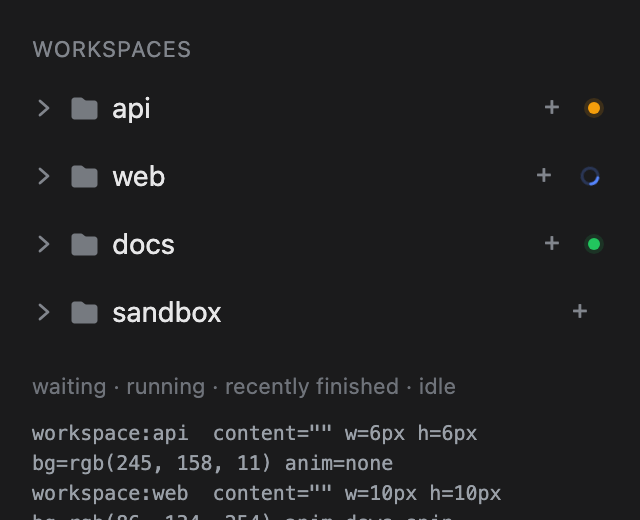
This is the plugin's own stylesheet rendered over a local reproduction of the sidebar row DOM and theme tokens — a design preview, not a live screenshot. The shipped app draws the same marks on the real rows.
Rules for workspace marks
- Precedence matches the shipped session row: waiting for the user beats running, which beats the finished reminder. A workspace therefore shows one mark at a time; the hidden description still reports every count.
- Subagents count as their parent's activity. A running subagent keeps the parent session's workspace marked even when the parent turn has settled. Subagent rows never produce a mark of their own — they are not workspace members.
- Archived sessions are ignored, the same way the default browser view hides them.
- The finished mark is a notice, not a flag. It lapses one hour after the session's last update, or one hour after the plugin watched it stop if that is later. The shipped per-row green dot persists until opened; a folder row has no timestamp to contradict it, so a permanent green dot would outlive the news. A finished session that was never seen running is judged by its own updated time only.
- Ungrouped sessions mark the "Ungrouped" bucket row, which behaves like a workspace row in the sidebar.
- No mark when everything is idle. The plugin renders nothing visible in that case — no mark and no hidden activity sentence.
The active workspace (the one containing the open conversation) is already marked natively: Harness paints the folder icon of the active chain blue. The Pinned section mirrors that color on the group header that contains the current conversation.
Install
From npm:
dsh plugin --profile <profile> add dsh-workspace-status
From a local checkout (development):
dsh plugin --profile desktop add /absolute/path/to/dsh-workspace-status
dsh plugin add links the checkout and appends this package to
dsh.profile.bundles because it declares dsh.bundle. Use the profile that
runs your client — desktop for the macOS/Windows app, web for dsh web.
Or use sidebar → Plugins → Add plugin and pass the absolute path to this
directory. The host half contributes nothing, but the profile composition still
changes, so restart the profile's Host (quit and reopen the desktop app, or
restart dsh web) after installing. Then reload the page if the client half
does not appear.
Manual mount without the CLI: copy the package into the profile's
node_modules, add "dsh-workspace-status" to dsh.profile.bundles in the
profile's package.json, and insert the row from cordis.patch.yml into the
profile's patch layer.
Verify
Workspace marks:
- Start a session in a workspace and collapse that group while it runs — a blue ring appears at the end of the folder row.
- Trigger an approval (or a plan review / question) in a session of another workspace — that folder row shows an amber dot even while expanded.
- Let a session finish without opening it — a green dot appears, and lapses an hour later.
- Expand the group: the mark stays on the folder row; the session rows keep their own dots unchanged.
Pinned section:
- Pin any conversation from its row hover button or … menu — the Pinned section appears above Workspaces without a restart, grouped under that conversation's workspace, with a filled pin icon on the row.
- Pin a conversation from a second workspace — a second group header appears; both groups keep the workspace header treatment and their own count.
- Click a pinned row — the conversation opens. Click the pin icon — the row disappears from the Pinned section and returns to its workspace group immediately.
- Collapse the Pinned header or a group — the state persists across reloads.
- Restart the Harness — the same pins are listed again, because the Host persists the registry pin set in the profile workspace registry.
Pinned notifications:
- Click the bell in the Pinned header. On first use it requests notification permission and shows a test notice; the bell is highlighted while enabled.
- Pin a conversation that is running, then let it finish without opening it — an in-app notice appears in the Pinned section; if the app window is in the background, a desktop notification is raised as well. Clicking either opens the conversation.
- Trigger an approval, plan review or question in a pinned conversation — the notice names the reason and workspace and remains until dismissed.
- Click the bell again to turn notifications off, or the × on a notice to dismiss it early. Reload: the bell, speaker and notification preferences persist.
If the plugin is missing, check the browser console for a failed client bundle load first; nothing else in the sidebar is affected.
How it works
- The mount is an entry in the additive
sidebar.footer.actionseat. It publishes a stylesheet, a visually hidden activity description, and a portal anchor; it adds no control of its own at the foot. - Workspace marks read the same public data the browser uses:
useWorkspaces(items,archivedSessionIds,pinnedSessionIds),useSessions(byId) anduseSessionStatus(running,pendingInteraction,completionUnread). - The workspace mark is the folder row's trailing pseudo-element, emitted as a
rule targeting
[data-row-key="workspace:<id>"]::after. - The Pinned section is rendered through a React portal into a container
inserted immediately before the sidebar's
regionAreaelement. The official browser is not replaced: search, menus, drag ordering, dialogs and directory picking stay native. - Pinned rows are lifted by hiding their
[data-row-key="session:<id>"]rows with generated CSS (display:none!important); search-result rows carry nodata-row-key, so they remain visible. - Unpin calls
ctx.workspaces.unpinSession(id); opening a pinned row callsctx.uiWorkspace.openSession(id). The pin set itself comes from the Workspace snapshot, so both the official tree and this section stay in sync. - Collapse memories and notification preferences live in browser
localStorage; no plugin settings are written. Notification delivery uses the renderer's standardNotificationAPI (and Web Audio for the optional chime); the plugin does not add a host service. - Removing the plugin removes the mount, the stylesheet and the inserted section container; no profile or session data is changed by the plugin.
Internal dependencies
Two details belong to @deepseek-ai/dsh-client-ui-workspace / ui-sidebar
rather than a public slot contract:
data-row-key="workspace:<id>"/session:<id>for row targeting;- the
…_regionAreaclass token for the portal insertion point.
A future Harness release could rename either; the failure modes are
deliberately "no mark / no section", not "broken sidebar": the plugin never
replaces the browser and its DOM writes are limited to one inserted container.
react-dom is a shared client platform module (the same baseline the shell
seeds for every bundle), used only for the portal.
Compatibility
- DeepSeek Harness
>=0.2.1-rc.2 <0.3.0-0(developed and verified against0.2.1-rc.3); Web and Desktop clients. - Node
>=22.18.0for the build-free package and its tests. - No host-side services, no settings, no model-visible tools or prompt changes. Pins are the shipped Workspace registry pin set.
Development
npm test
The suite loads the classic-script client envelope in a sandbox, drives the slot component with fake standard hooks, and asserts the emitted stylesheet and hidden description across waiting/running/finished, subagent, archived, ungrouped, expiry, pinned grouping (workspace order, ungrouped bucket, archived / blank / subagent exclusion), hide rules, pin precedence and selector escaping cases. A manifest test checks the bundle patch, export map, locale parity and the loader envelope.
There is no build step: index.js and client.js are the published artifacts.
Remove
dsh plugin --profile <profile> remove dsh-workspace-status
Restart the Host. The sidebar returns to stock; the inserted section container is removed with the plugin, and pins remain the shipped workspace registry state (unpin them through the normal pin action).
License
MIT